
Desde sencillas páginas web hasta sistemas completos en línea. Contamos con la experiencia y los recursos necesarios para crear la solución que necesitas. Escuchamos y analizamos tus necesidades para diseñar la mejor solución para ti. Desarrollamos tu aplicación de manera rápida, eficiente y económica. Contarás con un servicio de soporte y capacitación de nuestra parte.
La solución ideal para tu campaña de email marketing, te permiten enviar correos electrónicos muy vistosos y profesionales con todo lo necesario para su funcionamiento y seguimiento. Te daremos acceso a una aplicación en línea donde podrás consultar el desempeño de los boletines que se están enviando así como administrar tus listas de correos y suscriptores.
Ponemos a tu alcance un servicio de hospedaje super accesible a cualquier presupuesto, nosotros nos encargamos de la configuración y administración técnica. Instalamos y configuramos por ti lo servicios que necesites y te damos soporte por el mismo. Es la mejor solución cuando quieres tener tu proyecto web en línea de manera rápida, sin complicaciones y sobre todo económica.
Te ayudamos a diseñar la mejor solución para tu proyecto en línea. Ponemos nuestros conocimientos y experiencia al servicio de tus necesidades para proponer las mejores estrategias para alcanzar los objetivos de tu empresa o proyecto. Nos involucramos en las metas que persigues y creamos estrategias efectivas de imagen, conversión y promoción en Internet que ofrezcan los mejores resultados.
Ofrecemos soluciones para las necesidades más comunes de una marca en Internet, en forma de paquetes. ¿Necesitas un web? o ¿Cobrarle a tus clientes en línea? Tenemos una alternativa super práctica y completa para tu negocio. Los precios mostrados en las siguientes tablas están en pesos (MXN) y son solo para socios
Gestor de contenido WP
Versión responsiva a multiples dispositivos o pantallas
Cuentas de email @sumarca.com
Dominio, hospedaje soporte a cliente por un año
Programamos el tema WP a partir de tu diseño
Un sitio completamente administrable sin necesidad de saber codigo. Tu nos das el diseño y nosotros lo programamos, tienes soporte y asistencia técnica con tu cliente a tu nombre. Más informaciónGenera cobros personalizados
Envía cobros por correo electrónico
Acepta tarjetas de credito y ofrece mensualidades.
Sin cobro comisiones mensuales ni por apertura
Podras recibir pagos desde un sitio web, móvil o email
Comienza cobrar por tus productos y servicios en Internet integrando un sistema de pagos profesional a tu sitio web. Nosotros te explicamos y asistimos durante todo el proceso. Más informaciónFormulario de suscripción
Aplicación de administración, reportes y estadísticas
Vistosas plantillas de correo profesionales
Incluye 4 envíos de boletines hasta 10 mil correos por envío
Aplicación de administración, reportes y estadísticas
Todo lo que necesitas para arrancar con tu campaña de email marketing. Configuramos una plataforma de envío de correos profesionales con todo lo necesario para promocionar tu marca. Más informaciónCobro de colegiaturas en línea
Ofrece un campus en línea a tus alumnos
Reportes de evaluación y desempeño de alumnos
Tienda en línea para la comunidad escolar
Simplifica el proceso de inscripción
Mejora la administración y los servicios educativos que ofreces a tus alumnos y/o padres de los mismos apoyándote de un sistema de administración escolar en línea. Solicita una demostración sin compromiso. Más información
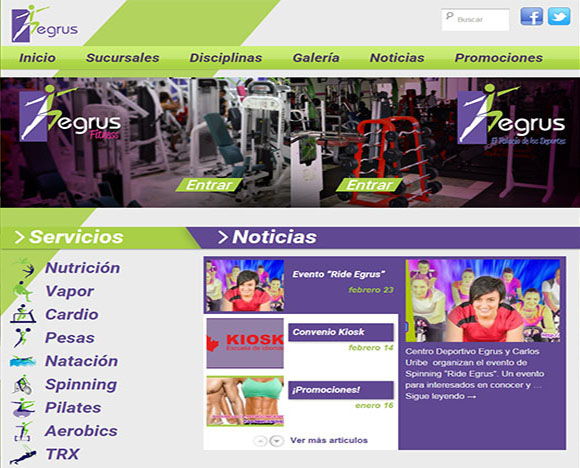

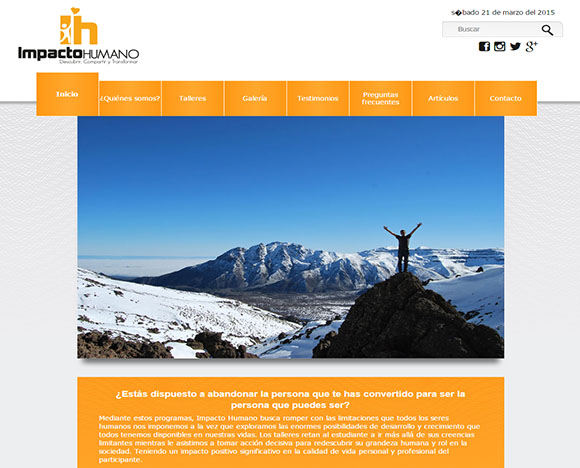





Somos un equipo de profesionales en el desarrollo web. Tenemos más de 10 años de experiencia construyendo apasionadamente hermosas soluciones para negocios y proyectos en Internet. Sabemos que lo más importante es que obtengas los resultados que esperas y un retorno de tu inversión significativo por eso nos esmeramos siempre desarrollar proyectos que funcionen estupendamente en el mundo web.
Programación web
Configuración de servidores
Marketing digital
Comercio electrónico